Scaffold a project with Vibe Code
Use the Vibe CLI to generate a full project from a natural-language description, review every change before it's applied, and run the result.
- Natural-language scaffolding: describe what you want and the CLI creates the files.
- Step-by-step confirmation: Vibe Code splits large tasks into steps and asks for approval.
- Full preview: see every file change before it's written to disk.
By the end you'll have a working project scaffolded from a single prompt.
Time to complete: ~10 minutes
Prerequisites
- Vibe CLI installed and configured. If you haven't done that yet, run the Install the Vibe CLI quickstart first.
This quickstart uses the ask agent, which asks for approval before every edit. It's the safest choice for a first run. By default, Vibe starts with accept-edits, which writes files in your working directory without prompting per step.
Step 1: Create an empty directory and launch the CLI
Start in a fresh directory so the CLI generates the project from scratch. Launch the CLI with the ask agent so you can review each change:
mkdir my-project && cd my-project
vibe --agent askThe CLI starts with an empty context, ready to scaffold.
If you run vibe in an existing project that contains an AGENTS.md file or Vibe configuration (such as .vibe/config.toml or .agents/skills/), the CLI asks whether you trust the folder before loading any local configuration. See Trusted folders.
Step 2: Describe your project
Give the CLI a clear description. Be specific about language, framework, and key features. For example:
Create a Python Flask API with two endpoints: a
/healthendpoint that returns{"status": "ok"}and a/predictendpoint that accepts a JSON body with a"text"field and returns{"label": "positive", "score": 0.95}. Include arequirements.txtand aREADME.
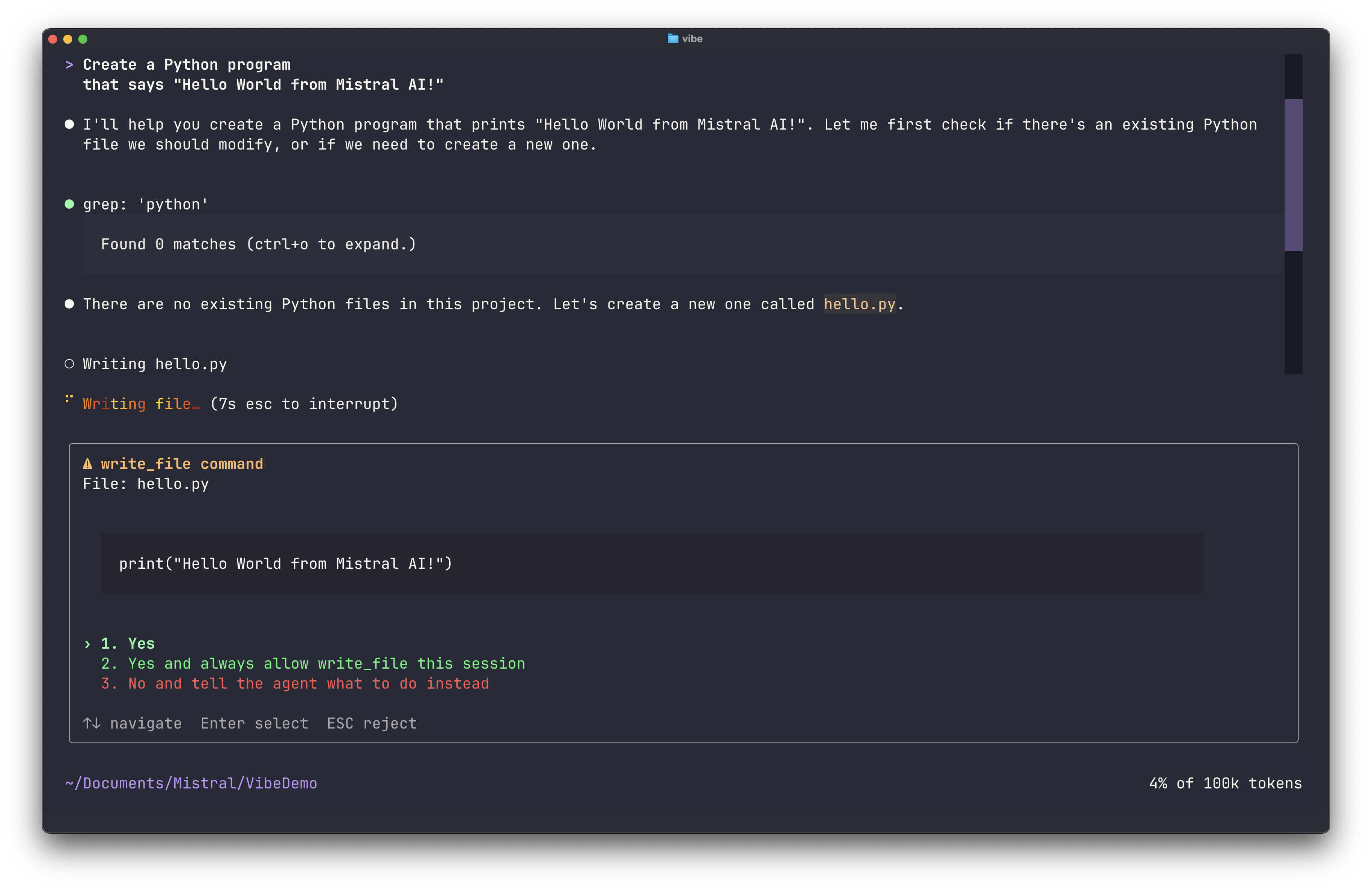
Vibe Code breaks the request into steps and begins generating files. Before creating or editing any file, it shows a preview.
Step 3: Review and approve changes
For each step, the CLI displays the files it plans to create or modify, the content of each file, and a confirmation prompt. Press one of the approval keys:
1oryto allow this edit once.2to allow this kind of edit for the rest of the session.3to always allow it.4,n, orEscapeto deny it.
You can also move between options with the arrow keys and press Enter, or click an option.
After each approved step, the CLI shows the result.
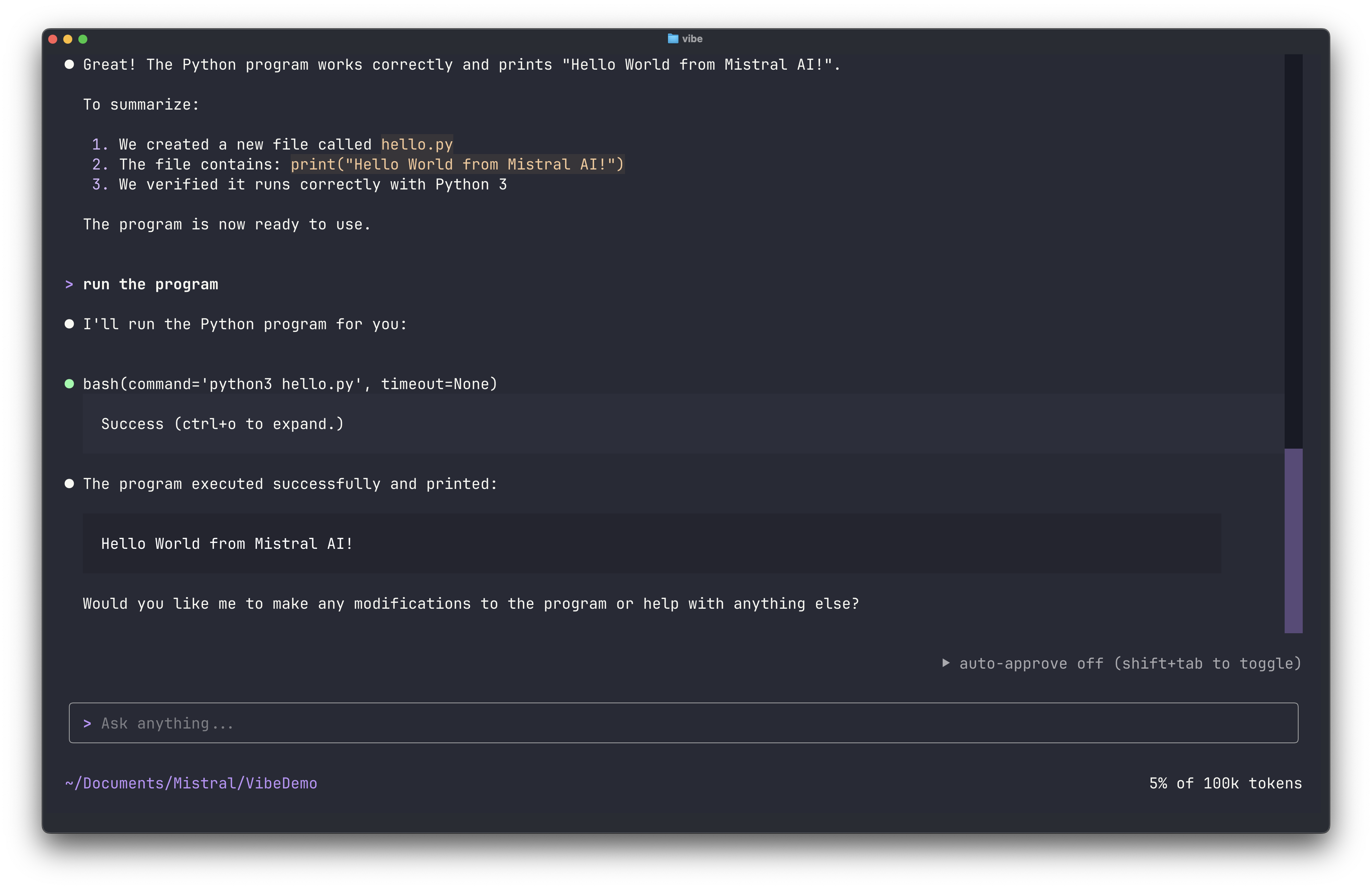
Continue approving steps until the project is complete.
Verify
Check that the project was created:
ls -laYou should see the files Vibe Code generated (for example, app.py, requirements.txt, README.md).
Ask the CLI to start the server and test the endpoints for you:
Install the dependencies, start the server, and run a curl against
/healthand/predictto verify they work.
Or run it yourself:
pip install -r requirements.txt
python app.pyTest the endpoints:
curl http://localhost:5000/health
curl -X POST http://localhost:5000/predict \
  -H "Content-Type: application/json" \
-d '{"text": "Mistral is great"}'Both endpoints should return valid JSON responses.