Enterprise Accounts
Enterprise Accounts sit above Organizations. They let existing Organization admins create and manage linked Organizations from the Admin Panel.
Admin Panel ↗ is where Enterprise Account admins manage the Enterprise Account layer and administer one Organization.
How Enterprise Accounts fit into Admin
The Admin hierarchy has three layers:
- Enterprise Account: the top-level account that links one or more Organizations.
- Organization: the account that contains members, Workspaces, billing, access settings, and policies.
- Workspace: a shared environment inside an Organization for product usage, resources, access, and limits.
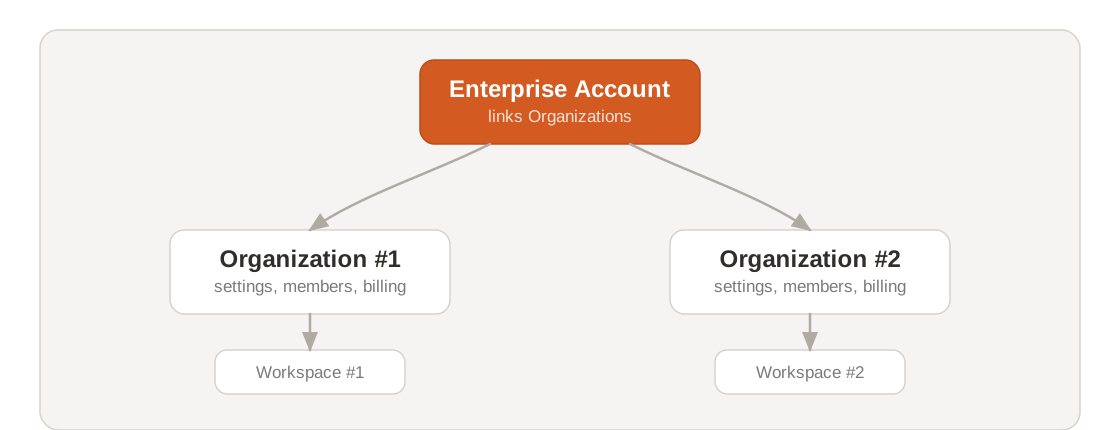
The Admin Panel manages the Enterprise Account and the Organizations under it. Workspaces still organize teams, environments, products, and budgets inside one Organization.
An Enterprise Account is not the same as an Organization on an Enterprise plan. The Enterprise plan is a billing tier that unlocks features like the Admin API, audit logs, and SSO for a single Organization. An Enterprise Account is an administrative layer that links multiple Organizations and is only available to Enterprise plan customers. You can be on an Enterprise plan without having an Enterprise Account.
When you need an Enterprise Account
Enterprise Accounts are available to admins of an existing linked Organization. Use them to generate Admin API keys, or when your company needs more than one Organization.
Enterprise Accounts and Admin API keys are available only on Enterprise plans. To get initial access, contact your Mistral account team or our sales team. A Mistral team member needs to create the first Enterprise Account for your company.
Create separate Organizations when different groups need their own:
- Organization settings;
- members and access model;
- Workspaces;
- Admin API keys;
- usage, billing, or operational boundaries.
You don't need multiple Organizations to have an Enterprise Account. Enterprise Account access also doesn't replace Organization roles.
Manage an Enterprise Account
Use the Admin Panel to manage Enterprise Account members, linked Organizations, and Admin API keys from one place.
Open the Admin Panel
Open Admin Panel ↗ and go to the enterprise section.
You need Enterprise Account admin access to use the enterprise section. Existing Enterprise Account admins can add other existing Organization admins to the Enterprise Account.
If you try to add a user who is not an Organization admin in a linked Organization, the invitation fails.
The left navigation includes:
- Enterprise Account Members;
- Organizations;
- API Keys.
Manage members
Use Enterprise Account Members to review and manage people who can access the Enterprise Account in the Admin Panel. Enterprise Account members must already be admins of a linked Organization.
The member list shows:
- name and email;
- account ID;
- Organizations associated with the member;
- last login;
- available actions.
You can add a new member from this page. Pending invitations appear in the list with an Invite pending status.
Manage Organizations
Use Organizations to review the Organizations linked to the Enterprise Account. The list shows each Organization name, Organization ID, member count, and available actions.
You can create an Organization from this page.
Enterprise Account admins can see linked Organizations, but they cannot administer every linked Organization by default. Use Promote to admin to promote the current Enterprise Account admin to Organization admin on the selected Organization.
Manage Admin API keys
Use API Keys to create and review Admin API keys for the Organizations under the Enterprise Account.
Admin API keys are scoped to one Organization. A key can administer only the Organization selected when you create it. Admin API keys can have an expiration date or no expiration date.
The key list shows:
- key name;
- Organization;
- masked key value;
- creation date;
- last used date;
- expiration date;
- available actions.
To create an Admin API key:
- Open API Keys in the Admin Panel enterprise section.
- Click Create Key.
- Enter a Name.
- Select the Organization the key belongs to.
- Optionally set an Expiration date.
- Create the key and copy it immediately.
The full Admin API key is only shown at creation. If you lose it, you'll need to create a new one.